How to Make a Babydoll Dance AI Video from a Photo
Make a Babydoll Dance AI video step by step: prepare one photo, preview the dance, buy a video pack, generate, and download your MP4.
Last updated: 2026-10-22
To make a Babydoll Dance AI video, choose a full-body photo, preview the prepared dance, buy a video pack and submit your photo. Once generation succeeds, play the result and download the MP4. You do not need to record yourself dancing or write a prompt.
The current generator makes one person follow a fixed Babydoll dance reference. The reference is about 11 seconds in a vertical 9:16 frame; output is requested at 720p. Exact framing, length and movement can vary with the photo and model.
You need one permitted photo, a video allowance and a few steps in the browser. Each generation reserves 1 video; a confirmed failed task returns that allowance.
See an actual photo-to-dance result
This example uses an AI-created character and an actual video made with this generator. It shows the input and output separately so you can compare them. It is an example, not a promise that every photo will produce the same result.
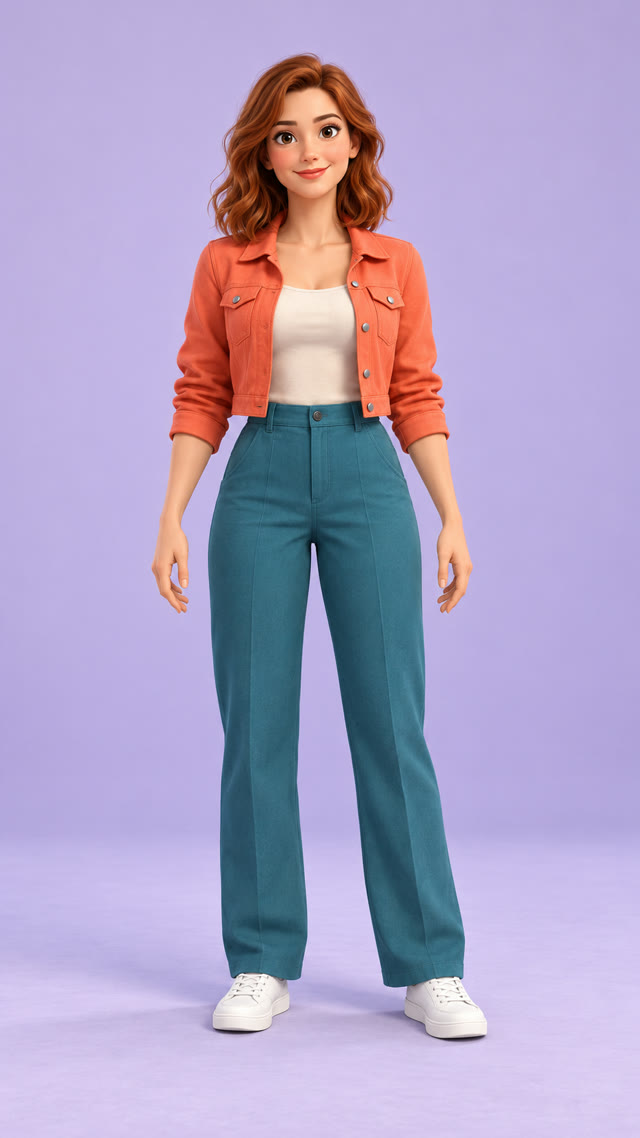
Step 1. Prepare one clear photo
Use a sharp, well-lit full-body photo of one consenting adult, with hands and shoes visible and space around the person. The upload accepts JPG/JPEG or PNG up to 8 MB. Both dimensions must exceed 340 pixels; extremely narrow or wide images are rejected.
Need to convert a phone photo or choose a better crop? Read the photo preparation guide before spending a video allowance.
Step 2. Preview the Babydoll dance
Open the Babydoll Dance AI generator and play the reference. Check the full-body movement and the vertical composition before selecting your photo.
The reference preview shows the source dance. It is different from the personalized video you will generate. The current editor uses this prepared clip; it does not offer a duration selector, a custom dance upload or a multi-person mode.
Step 3. Choose your photo and confirm permission
Select your file in the upload area and inspect the local preview. Confirm that you have permission to use both the photo and the person’s likeness. You can replace an unsuitable photo before starting generation.
Selecting the photo alone does not submit it to the AI provider. Starting generation does. The browser may keep a local draft to restore it after checkout; see the privacy policy for details.
Step 4. Buy a video pack or use your remaining balance
If you already have a video allowance, continue with it. Otherwise, open the video packs, review the current price and complete the PayPal checkout. Packs are one-time purchases with no subscription; the site currently offers 1, 3 or 5 HD videos with no expiry.
Guest checkout does not require registration when available. Enter an email you can access and keep using the same browser after checkout. If the site asks you to sign in, use the account flow shown there. Payment must be confirmed before the purchased allowance is available; a return from PayPal alone does not guarantee confirmation.
The primary button guides you through the missing step: choose a photo, confirm permission or buy a pack. When those are ready, it lets you start generation.
Step 5. Generate and wait for the same task
Start generation once. The photo is uploaded to the AI provider and 1 video is reserved while the task runs. Queue and processing times vary; there is no guaranteed completion time.
You can refresh and return to the same task in the same browser. While it is pending or processing, let that task finish. Do not submit another paid generation just because it is taking longer than expected.
What if generation fails or the connection drops?
- Confirmed failure: the reserved video allowance is returned. Read the error, then replace the photo if needed and try again.
- Still pending or processing: the task is active. Keep checking that task rather than starting over.
- Submission cannot be confirmed: check the existing task and My Videos. A lost connection does not prove that the provider failed or that no allowance was used.
Step 6. Play, review and download
Once the task succeeds, play the generated result. Inspect the face, hands, feet, clothing and background, especially during fast movements. Use the download control to save the MP4. You can find completed videos again in My Videos.
If your phone opens the video instead of saving it, use the browser’s download or sharing options to save it to Files. Keep a local copy of videos you want to retain.
Recover access to a guest purchase
If you cleared browser data, changed devices or lost your guest session, open Recover purchases and enter the email used at checkout. Follow the recovery link sent to that address. Guest purchases and signed-in account balances are separate; entering an email is not the same as signing into an existing account.
Before you share
Make sure the person agreed to the animation and that the result does not misrepresent something they actually did. Review the audio in the finished download. Purchasing a video does not include rights to the reference music; follow the publishing platform’s rules for audio and AI content. This is an independent creator tool, not an official Jamie Miller product.
Ready to try it?
Prepare your photo, then make your Babydoll dance. For purchase access or completed results, use Recover purchases or My Videos.